
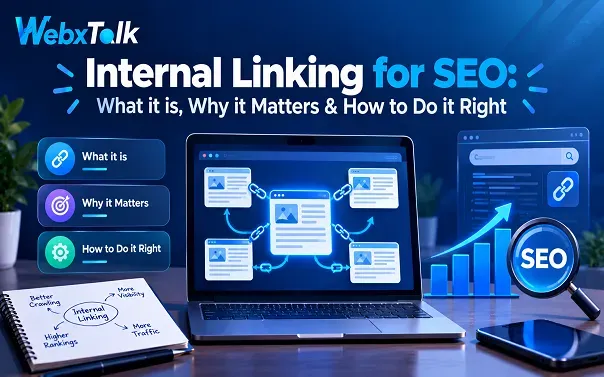
Internal Linking for SEO: What it is, Why it Matters & How to Do it Right
Internal linking is easy to overlook, but it plays an important role in how a website works. It connects related pages, helps visitors find useful information, and makes it easier for search engines to discover your content. Without these links, some valuable pages may get buried and remain hard to find.
So, how do you use internal links effectively? This article explains how they work in HTML, why they matter for SEO, and how to add and find them on your website. You’ll also learn which tools can help and how internal linking supports On-Page SEO by connecting related content and making your website easier to navigate.
What Is Internal Linking?
Internal linking means adding links from one page of your website to another page on the same website. For example, a blog post about SEO can link to your page about keyword research. These links help visitors find related information and help search engines discover and understand your website’s pages.
Internal Links vs. External Links
Internal links point to pages on your own domain. External links point from your site to a different domain, such as a study or source you cite. Backlinks are the reverse: links from other websites to yours.
| Feature | Internal links | External links |
| Destination | Same domain | Different domain |
| Main purpose | Navigation, crawling and passing authority | Credibility, references and extra context |
| Control | Fully yours | Outgoing links are yours; backlinks are earned |
Both types matter. Backlinks and reputable outbound links build trust, while internal links spread that trust across your pages and help visitors explore. Because you control internal links completely, you can place them wherever they make sense and use descriptive, even exact-match, anchor text without the spam risk that comes with manipulating external links.
Types of Internal Links
Internal links fall into two broad groups: structural links that stay the same across your site, and contextual links that change with your content.
Structural links
- Navigational links sit in your main menu or header and point to your most important sections, such as services, products, or the blog.
- Footer links appear at the bottom of every page and usually lead to pages like the privacy policy, contact page or sitemap.
- Breadcrumb links show where a page sits in your hierarchy (Home > Blog > Internal Linking) and give crawlers a clear picture of your Website Architecture.
- Sidebar links highlight popular categories, recent posts or related articles beside the main content.
Contextual links
- In-content links appear inside the body of a blog post or landing page and point to related pages. They usually carry the most SEO value because the surrounding text shows why the two pages are connected.
- Call-to-action (CTA) links nudge readers toward an action, such as booking a demo or viewing a product.
- Image links turn an image into a link. Since there is no anchor text, write a clear alt attribute so search engines understand the destination.
- Related and popular post links at the end of an article keep readers moving to the next relevant page.
What is an Internal Link in HTML?
In HTML, an internal link is an anchor tag with an href attribute that points to another URL on your own domain:
<a href=”https://www.example.com/keyword-research-guide/”>keyword research guide</a>
Three parts matter here:
- The anchor tag (<a>) creates the hyperlink.
- The href attribute holds the destination. For internal links you can use the full URL or a relative path such as /keyword-research-guide/.
- The anchor text is the clickable text between the tags. It tells users and search engines what to expect on the destination page.
You may also see rel=”nofollow” added to a link. It tells search engines not to pass authority through that link. For internal links you rarely want this, except on low-value utility pages such as login or cart pages.
Does Internal Linking Improve SEO?
Yes. Internal linking can improve SEO by helping search engines discover pages, understand how content connects, and identify important pages. It works best alongside useful content and quality backlinks.
- Helps Search Engines Discover Pages: Google follows links to find content across a website. Internal links give crawlers more ways to reach new pages and revisit existing ones.
- Shares Link Value Across Your Website: Pages that earn backlinks through Off-Page SEO can pass some of their link value to other relevant pages through internal links. This can support product and service pages that do not attract many backlinks themselves.
- Highlights Important Pages: Pages with more relevant internal links and fewer clicks from the homepage are often easier to find. Linking to key service, product, or lead-generation pages can help visitors and search engines reach them more easily.
- Strengthens Topic Relationships: Linking related articles to a main guide helps connect content around a subject. This structure makes it easier for search engines to understand how the pages relate and how thoroughly the website covers a topic.
- Makes Navigation Easier: Useful internal links guide readers to related information without making them search for it. A clear path through the website helps visitors find answers, explore services, and take the next step.
- Helps AI Search Understand Your Content: A well-organized website with links between main guides and supporting articles makes relationships between topics clearer. This can help AI-powered search systems interpret your content, although internal links alone do not guarantee citations or visibility.
Keep links relevant and useful. Adding more links does not automatically improve SEO. Excessive links, unrelated destinations, and vague anchor text can confuse readers and make it harder for search engines to understand the page structure.
How to Create an Internal Link
Creating an internal link takes under a minute once you know where to place it. Follow these steps.
- Pick the Page You Want to Support: Start by choosing the page that needs more internal links. It could be a new blog post, an important service page, or a detailed guide.
- Look for a Natural Linking Opportunity: Read through related pages and find a sentence where the link would be useful. If it feels awkward or unrelated, find a better spot.
- Choose Meaningful Anchor Text: The linked words should give readers a clear idea of what to expect. For example, use “technical SEO checklist” instead of “click here.”
- Insert the Link: In your content editor, select the words you want to link, click the link option, and add the destination URL. Save your changes once the link is in place.
- Link Between Related Articles: Internal links should work both ways when it makes sense. If a supporting article points to a main guide, consider linking back to that article from the guide to help readers explore the topic further.
- Make Sure the Link Works: Open the page and click the link yourself. Check that it leads to the right destination and doesn’t return an error or take visitors through an unnecessary redirect.
As a habit, whenever you publish something new, add two or three links to it from related existing pages. New pages have few backlinks, so internal links are what get them discovered.
How to Find Internal Links on Your Website
Internal links can be identified by looking at the pages that link to your website. Tools for SEO such as Screaming Frog and Ahrefs can be used to identify these links, pinpoint pages that have a low number of internal links and determine where to link related content. Below are all the steps, which you can check, for better understanding:
Step 1: Check a Page Manually
Open a webpage, right-click, and select View Page Source. Press Ctrl + F and search for href to find links on that page.
Step 2: Use Google Search Console
Open Google Search Console, select your website, click Links, and check the Internal links report to see which pages receive the most links.
Step 3: Crawl Your Website
Use Screaming Frog or Semrush Site Audit to crawl your website and identify internal links, broken links, and pages with few or no incoming links. For a broader overview of how crawling works, see Website Crawling 101.
Step 4: Find Orphan Pages
Compare your XML sitemap URLs with the pages discovered by your crawler. Pages missing from the crawl may have no internal links pointing to them.
Step 5: Find Linking Opportunities
Search Google using the site:yourdomain.com keyword to find relevant pages where you can naturally add links to important content.
Step 6: Test Website Navigation
Ask someone unfamiliar with your website to find a specific page. If they struggle, improve the links and navigation to make it easier to find.
How to Improve Your Website’s Internal Linking
Strong internal linking comes from a plan rather than random links. Use the steps below as a blueprint.
1. Plan a clear site structure
A pyramid works well: the homepage or main pillar pages at the top, categories or topic clusters in the middle, and individual articles or products at the bottom. Aim to keep important pages within about three clicks of the homepage. Pages buried deeper tend to look less important and are crawled less often.
2. Build pillar pages and topic clusters
A pillar page covers a broad topic in depth, such as washing machines or email copywriting. Cluster pages explore narrower subtopics. Each cluster page links to the pillar, and the pillar links out to its clusters. This hub-and-spoke model distributes authority and shows search engines which page is your main resource on the subject. A retailer, for instance, might link a washing machines pillar to front-load, top-load, and compact categories, which then link to individual products.
3. Use authority pages to lift weaker pages
Find the pages with the most backlinks, using a backlink tool or the Links report in Search Console. Then add relevant links from those pages to pages that deserve more visibility. This is one of the quickest ways to make existing authority work harder.
4. Link to new and updated content
After publishing a post, add links to it from relevant older articles. Also review your existing content periodically for pages that should link to your latest work.
5. Choose anchor text carefully
Good anchor text is short, relevant and descriptive. A few more rules help:
- Mix natural variations of the keyword instead of repeating the same phrase everywhere.
- Do not use identical anchor text for different pages, or you create confusion about which page should rank for that phrase.
- Avoid generic phrases such as click here, and avoid stuffing keywords.
6. Keep navigation clean, consistent, and crawlable
Your main menu should highlight your most important pages and stay the same across the site. Do not overload it; a few useful links beat a crowded list. Add breadcrumbs so visitors and crawlers can see the path back up your hierarchy, and make sure menus are readable in the page source and not only after JavaScript runs.
7. Keep links relevant and the count reasonable
There is no official number of internal links per page. Add them where they help the reader and skip them where they do not. A shop selling sports shoes, for example, should link a sneaker page to similar sneakers, not to unrelated trousers. Too many links dilute the value passed by each one and can overwhelm visitors.
For more practical SEO tips, explore the complete Beginner to Advanced SEO guide.
8. Audit and fix problems regularly
Internal linking decays as sites grow. Run an audit at least monthly or quarterly and fix the issues below.
| Problem | Why it hurts | Fix |
| Broken internal links | Lead to 404 errors and pass no value | Replace or remove them |
| Orphan pages | Hard for crawlers to discover | Link to them from relevant pages or the navigation |
| Pages with only one internal link | Look less important | Add more relevant links |
| Deep pages (more than three clicks) | Seen as low priority | Link to them from higher-level pages |
| Internal redirects and redirect chains | Waste crawl budget and slow loading | Link straight to the final URL |
| Links from HTTPS to HTTP pages | Cause extra redirects and security warnings | Update links to HTTPS |
| Nofollow on internal links | Stops authority from passing | Remove nofollow unless the page is a utility page |
| Too many links on one page | Confuses users and dilutes value | Remove links that add little |
Best Internal Linking Tools for SEO
- Yoast SEO Premium: Suggests related pages to link in WordPress.
- Rank Math & Link Whisper: Recommend internal links while writing content.
- Semrush Site Audit: Finds broken links, orphan pages, and linking issues.
- Screaming Frog SEO Spider: Crawls websites to analyze internal links and errors.
- Google Search Console: Shows which pages receive the most internal links.
- Seobility: Audits site structure and identifies linking problems.
- Google Analytics: Shows how visitors move between website pages.
Tools save time, but they only suggest. Always check that a recommended link is genuinely relevant before adding it.
Common Internal Linking Mistakes to Avoid
Not all the links have to connect to anything just for the sake of it. Use anchor text and connect to related pages; ensure the link helps readers find useful information. The use of repetition of vague phrases or redirecting to unrelated information can lead to confusion in navigation.
It’s also easy to forget internal links when publishing new pages or updating an existing website. Once the page has been redesigned, migrated, or deleted, make sure that links that are relevant to the page are still functional. First and foremost, create links for what readers need, not just search engines.
FAQs
Does internal linking improve SEO?
Yes. Internal links help search engines crawl and index your pages, pass authority to important URLs, reveal your site structure and strengthen topical authority. They also help visitors find related content, which improves engagement.
What do you mean by internal linking?
Internal linking means linking from one page of your website to another page on the same domain. These links guide visitors through your content and give search engines a map of your site.
What is an internal link in HTML?
It is an anchor tag whose href attribute points to a page on your own domain, for example <a href=”/pricing/”>pricing plans</a>. The text between the tags is the anchor text.
How do I create an internal link?
Choose a destination page, find a relevant sentence, write short descriptive anchor text and insert the link using your editor’s link tool or an HTML anchor tag. Then test that it opens the right page without a redirect.
How can I find the internal links on my website?
View the page source for a single page, use the Links report in Google Search Console to see your most linked pages, or run a crawler such as Screaming Frog or Semrush Site Audit to list every internal link, broken link and orphan page.
How do I improve my website’s internal linking?
Plan a clear structure, build pillar pages with topic clusters, link from authority pages to weaker ones, use descriptive anchor text, support every new page with a few relevant links and audit the site regularly for broken links, redirects and orphan pages.
What are the best internal linking tools for SEO?
Yoast SEO Premium, Rank Math and Link Whisper help while writing in WordPress. Semrush Site Audit, Screaming Frog, Seobility and Google Search Console help you audit and monitor your site.
How many internal links should a page have?
There is no fixed number. Add links where they are useful and relevant, and avoid crowding a page, since too many links can confuse users and weaken the value each one passes.
Final Thoughts
Internal linking is simple in concept and powerful in practice. It helps search engines discover your pages, directs authority to the content that matters, and gives readers a smooth path through your site. Start by mapping your pillar pages and clusters, add relevant contextual links with descriptive anchor text, and audit regularly so your structure stays healthy as your site grows. For more SEO support and practical guidance, Webxtalk can help you make the most of your existing content. A few hours of careful linking can lift pages you have already published without writing a single new article.




 Yes, I Want Growth