
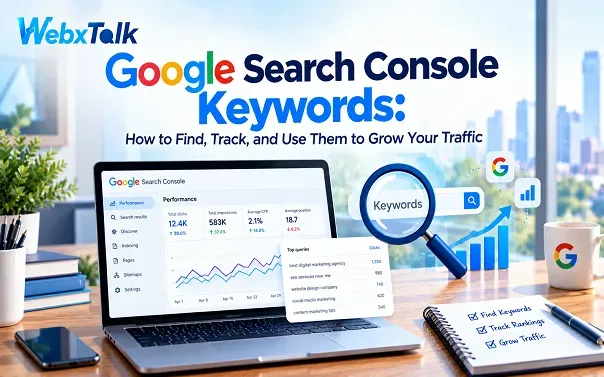
Google Search Console Keywords: How to Find, Track, and Use Them to Grow Your Traffic
You know your website is getting traffic, but do you know which Google searches are bringing people to it? You might have pages that attract hundreds of visitors while other pages appear in search results without getting many clicks. Without the right data, it is difficult to know what is working and what needs improvement.
That is where Google Search Console (GSC) helps. It is a free tool from Google that shows which search queries bring your website into search results, how often people see your pages, and how many clicks those pages receive. You can use this information to find keyword opportunities, improve existing content, and understand changes in your organic traffic.
The best part is that you do not need to be an SEO expert to get started. Once you understand a few basic reports and metrics, you can use Google Search Console keywords to make better decisions about your website content.
What Is Google Search Console Used For?
Google Search Console is a free tool that helps website owners understand how their websites perform in Google Search. It shows which search queries lead people to your pages, how many clicks and impressions you receive, and which pages appear in search results.
It also helps you understand whether Google can access and index your pages. If a page is not appearing in search results, you can use its reports to investigate possible problems. The tool also provides information about website experience, security issues, and other technical concerns.
For SEO, one of its most useful features is the Performance report. It helps you discover the keywords people use before visiting your website. You can then use those findings to improve existing pages, identify content gaps, and find opportunities to attract more relevant visitors.
Can I Use Google Search Console for Free?
Yes. Google Search Console is completely free to use and works with websites built on different platforms, including WordPress, Shopify, Wix, and custom-built websites.
You do not need to purchase a subscription to access its main reports. All you need is a Google account and permission to verify ownership of the website.
Once your website is verified, Google Search Console starts collecting performance data. However, it does not provide historical data from before your property was added, so it is worth setting it up early, even if you are not ready to use every feature.
How to Set Up Google Search Console
Setting up Google Search Console usually takes only a few steps. If you’re new to the process, resources from digital marketing agencies like Webxtalk can also help you understand how to use it for SEO.
Step 1: Open Google Search Console
Visit Google Search Console and sign in with your Google account.
Step 2: Add your website
Google offers two main property types:
- Domain property: Covers the entire domain, including its subdomains and different protocols, such as HTTP and HTTPS. Verification requires a DNS record.
- URL-prefix property: Covers URLs that begin with the exact prefix you enter, including the specified protocol and path. It supports several verification methods.
For most website owners who want to monitor their whole domain, a Domain property is a useful starting point.
Step 3: Verify ownership
Follow Google’s instructions to verify that you own or manage the website. Depending on the property type, available methods may include adding a DNS record, uploading an HTML verification file, or placing an HTML tag on your website.
For a Domain property, DNS verification is required. URL-prefix properties may offer additional options, including HTML files, HTML tags, Google Analytics, or Google Tag Manager when the relevant requirements are met.
Step 4: Give Google time to collect data
After verification, open the Performance report to see whether data is available. A new property may not show much information immediately. Allow time for data to appear, and make sure the website is receiving impressions in Google Search.
How Do I Use Google Search Console?
Google Search Console contains several reports, but you do not need to understand all of them at once. Start with the reports that help you answer common SEO questions.
- Performance report: Shows clicks, impressions, click-through rate, average position, and the search queries associated with your website.
- Page indexing report: Helps you understand which pages Google has indexed and which pages have encountered indexing problems.
- URL Inspection tool: Lets you check the indexing status of a particular URL and request indexing when appropriate.
- Sitemaps report: Shows the status of sitemaps submitted to Google.
- Core Web Vitals report: Provides information about page experience, including loading performance, responsiveness, and visual stability.
- Manual Actions report: Tells you if Google has applied a manual action to your website for a violation of its spam policies.
For keyword research and content improvements, start with the Performance report under Search results. The other reports help you investigate technical issues that might prevent your pages from performing as expected.
How to Find Keywords in Google Search Console
The Performance report is the best place to begin when you want to find keywords your website already ranks for.
Open Google Search Console, select your website, and click Search results under Performance. You will see a chart with several metrics and a table containing information about your search performance.
The Queries tab shows the actual search terms associated with your website’s performance. These terms can reveal what people are looking for, which topics Google connects with your pages, and where you may have opportunities to improve.
Reading the Four Metrics
In Google Search Console, there are four metrics in the Performance report: Clicks, Impressions, CTR, and Average Position. They track different metrics of what you’re doing in search, such as visibility, to clicks that your pages are getting.
- Clicks
Each click on a search result to your website is counted. For instance, if you’re tracking 150 clicks, that indicates that you had 150 clicks on Google Search over the specified time.
- Impressions
Impression – when you appear on Google Search without being clicked, it is an impression. If it receives a lot of impressions but not enough clicks, it may be viewed but not deemed worthwhile enough.
- Click-through rate (CTR)
The ratio between impressions and clicks is the CTR. A page with 1,000 impressions and 50 clicks has a 5% CTR. If that is a low percentage, look at your title and description as well as your ranking and searcher’s intent.
- Average position
This indicator provides a measure of the average rank that your search result page appears in the search results when it’s shown on the page. In general, the lower the number, the higher the rank, but a rank of 6 doesn’t guarantee that your page will rank as the sixth one. Rankings may differ depending on the query, location, device, and the listing shown.
Combined, these metrics can give you insights into visibility, clickability, and where your pages are showing up in search results.
Finding Your Top Queries and Pages
Once you understand the metrics, use the Queries and Pages tabs to find your best opportunities.
Follow these steps:
- Open the Search results Performance report.
- Choose a date range, such as the last three months.
- Select the Queries tab to see which search terms bring your website into Google results.
- Sort by clicks to identify queries that already attract visitors.
- Sort by impressions to find queries where your website has visibility but may not receive many clicks.
- Click the Pages tab to identify which URLs receive the most search traffic.
- Select a query or page to filter the report and examine its performance in more detail.
A local salon reviewing Google Search Console may find that its website appears for searches like “why is my business not showing on Google Maps?” even though its blog only covers local SEO in general. This suggests visitors may need more practical help with Google Business Profile, customer reviews, and local visibility. Adding that information could make the existing article more useful or highlight a topic for a new guide. The point is to use real search data to understand what people need, rather than guessing what content to publish next.
Spotting “Striking Distance” Keywords
Striking-distance keywords are search terms for which your website already ranks reasonably well but has not yet reached a stronger position. SEO professionals often use positions 4 to 15 as a practical range for finding these opportunities. This is a working guideline, not an official Google ranking category. Semrush also recommends using this range to identify pages that may benefit from focused improvements. (Semrush)
To find them, open the Queries tab and review average position alongside impressions and clicks. Look for keywords that have meaningful impressions, a position between 4 and 15, and a search intent that matches your content.
Next, check the page associated with each query. Ask yourself:
- Does the page answer the searcher’s question clearly?
- Is important information missing?
- Could the title and headings better reflect the topic?
- Are there relevant internal links pointing to the page?
- Is the content still accurate and up to date?
Suppose a page about email marketing ranks around position eight for “email marketing tips for small businesses.” Instead of writing another article on the same subject, you could improve the existing page with practical examples, clearer steps, and useful advice that better answers the query.
You can also add relevant internal links from related articles and update outdated information. Make changes based on the actual search intent, not just the position number.
Low CTR and Missing Keywords
Sometimes a page receives plenty of impressions but very few clicks. In other cases, a keyword you expected to appear in the report is missing entirely. Both situations deserve investigation.
When CTR is low: Review the search query and the page that appears for it. Check whether the title clearly communicates the benefit of visiting the page and whether the description accurately explains what readers will find. A more relevant title or meta description may encourage clicks, but avoid making promises the content cannot deliver.
Also check the average position. A result ranking lower on the page will often receive fewer clicks than a result near the top, so a low CTR does not always mean the title is the problem.
When expected keywords are missing: Check whether your website has a page that directly answers the relevant question. If the topic is important to your audience but your content barely covers it, improve the existing page or create a dedicated resource.
Do not add a keyword simply because it is absent from the report. First confirm that the topic is relevant to your audience and fits your website’s purpose.
How Can I Check My SEO Ranking?
Google Search Console helps you monitor your search performance, but its average position should not be treated as a fixed ranking for every search.
Your page may appear in different positions depending on the query, device, location, and search results shown to each user. Search Console averages the positions recorded across impressions, so the number provides an overview rather than a guaranteed live rank. (Google Search Console Help)
To check ranking trends, open the Performance report and select the queries or pages you want to monitor. Choose a date range, then use the Compare option to compare two periods.
For example, compare the last 28 days with the previous 28 days. Review clicks, impressions, CTR, and average position together. If impressions and clicks are increasing while average position improves, your page may be gaining visibility. If impressions increase but clicks remain flat, investigate CTR and the queries driving those impressions.
You may notice that Search Console reports different positions from a third-party rank-tracking tool. This is normal because the tools may use different locations, devices, keywords, checking times, and calculation methods.
Use Search Console to understand actual search performance across your property. Use rank-tracking tools when you need more controlled comparisons for specific keywords and locations.
Is Google Search Console Good for SEO?
Yes. Google Search Console is one of the most useful free tools for SEO because it shows how your website performs in Google Search and helps you identify problems that may affect visibility.
However, it does not improve rankings automatically. You need to use the information to make informed changes to your content and website, something Webxtalk’s SEO team can help you implement.
Here are some practical ways to use it:
- Check indexing: Use the Page indexing report to investigate why important pages are not indexed.
- Inspect individual URLs: Use URL Inspection to check a page’s status and investigate crawling or indexing issues.
- Submit a sitemap: Help Google discover important URLs by submitting an up-to-date XML sitemap.
- Review Core Web Vitals: Identify pages that may have loading, responsiveness, or layout stability problems.
- Check manual actions: Review the Manual Actions report if you suspect a policy-related issue.
- Improve existing content: Use query and page data to find relevant topics, low-CTR results, and pages with room to grow.
The best results come from connecting these reports with useful content updates and technical improvements. Avoid making changes based on a single metric or a short period of data.
How to Earn From Google Search Console?
Google Search Console does not pay you for clicks, impressions, or keyword rankings. It is a reporting tool, not a monetization platform.
You can, however, use its data to support strategies that generate income.
Display advertising: If you publish useful content and attract a suitable audience, advertising platforms may let you earn revenue from ads displayed on your website.
Affiliate marketing: If your website recommends products or services, relevant affiliate links may earn commissions when visitors complete qualifying actions.
Lead generation: Businesses can use organic traffic to attract potential customers who submit forms, request consultations, or contact the company.
Selling products or services: An online store or service business can use Search Console data to understand which pages attract people who may be interested in its offerings.
For example, if your website receives impressions for searches related to a product you sell, you can review the relevant landing page and check whether it answers the searcher’s questions and makes the next step clear.
It is also important to distinguish Google Search Console from Google AdSense. Search Console measures search performance, while AdSense is an advertising program that eligible publishers can use to earn money from ads. They serve different purposes and can be used together.
Where Google Search Console Falls Short
Although Google Search Console is valuable, it does not provide every type of SEO data.
It does not show every keyword. Some queries are hidden for privacy reasons, and the report has limits on the data displayed. You should not treat the query table as a complete record of every search that led to your website.
It is not a complete keyword research tool. Search Console shows how your site performs for queries, but it does not provide the full range of keyword discovery features, search-volume estimates, or keyword difficulty scores offered by dedicated SEO tools.
It does not provide comprehensive competitor data. You can analyze your own website’s performance, but you cannot use the standard Performance report to see every keyword driving traffic to a competitor’s website.
It needs context. A keyword with many impressions is not automatically valuable. You still need to consider search intent, relevance, potential conversions, and whether the page meets the needs of your audience.
AI search reporting has evolved. The standard Search performance report provides an overall view of Google Search performance, but it is not the same as a detailed analysis of every AI search platform. Google introduced dedicated generative AI performance reporting for features such as AI Overviews and AI Mode in 2026. As of August 31, 2026, Google reported that these insights had rolled out to websites worldwide. Availability and reporting details can still depend on the data and report being viewed. (Google Search Central)
For deeper keyword research, competitor analysis, or broader AI visibility tracking, check out our Complete SEO guide for additional strategies. Search Console remains the starting point for understanding how your own website performs in Google Search.
FAQs
Is Google Search Console data delayed?
Yes, it can take some time for recent data to be seen in Google Search Console. The most recent estimates might not be complete; consult the information in the data status section of the report to avoid making conclusions. To monitor the changes in SEO, look at time periods that have enough information to have a good trend.
How far back does Google Search Console data go?
Google Search Console keeps up to 16 months of data in the Search results Performance report. Once data falls outside that window, it is no longer available in the report. To preserve longer-term SEO records, export the data regularly or use the Search Console API or a supported data export setup.
What is the difference between Google Search Console and Google Analytics?
Google Search Console shows how people find your website through Google Search, including queries, impressions, clicks, and average position, while Google Analytics focuses on what visitors do after arriving, such as engaging with pages or completing conversions. Using both gives a fuller picture of SEO performance, from search visibility to visitor actions on the website.
Can Google Search Console find all the keywords my website ranks for?
No tool report provides a complete list of every search query. Search Console omits some queries for privacy reasons and applies reporting limits. The available data is still useful for spotting search trends, finding content opportunities, and identifying pages that could perform better.
How often should I check Google Search Console?
Many websites will require a weekly review. Monitor more frequently if you’re dealing with a traffic spike issue, tracking a site change, or assessing significant site changes. Don’t act on daily periods; rather, look for trends over a significant period of time.
Final Thoughts
Google Search Console keywords can provide you with insights into the search terms used by your audience before they click through to your site. Most important of all, the data can guide you on the pages you should enhance, which topics should be focused on, and where your website might be lacking opportunities.
Use the Performance report as the starting point. Analyze each of these metrics, including review clicks, impressions, CTR, average position, etc., and then explore existing queries that drive visibility to pages. Identify eye-catching keywords, enhance pages with low CTR, and uncover technical issues through the indexing reports.
Do not jump on all numbers that you see. Pay attention to the keywords that are important to your target audience and alter the content to improve people’s ability to locate clear and useful answers. In the long run, you can use this method to improve your content strategy and ensure that you’re getting more and more relevant organic search.




 Yes, I Want Growth